> ## Documentation Index
> Fetch the complete documentation index at: https://sequinstream.com/docs/llms.txt
> Use this file to discover all available pages before exploring further.
# Trigger Inngest events from database changes
> Build reliable event-driven applications by triggering Inngest functions from Postgres changes. Use Sequin to process database events with guaranteed delivery.
[Inngest](https://www.inngest.com/) is a serverless jobs queue. You write and test functions locally in your project, and then deploy them to Inngest where they reliably invoke the functions you write. Inngest handles the infrastructure, observability, and execution.
Often, you want to trigger Inngest events when a record in your database is created, updated, or deleted. For instance, you might want to send a welcome email to a user as soon as they are inserted into the database:
 In this guide, you'll learn how to use a Sequin webhook sink to trigger Inngest events from database changes.
## Prerequisites
You are about to create a local Inngest function that sends a welcome email to a user as soon as they are inserted into the database. Sequin ensures that every new user `insert` triggers an Inngest event that your function can then process (i.e. exactly once processing guarantee).
You'll need the following:
* An JavaScript/TypeScript project with [Inngest](https://www.inngest.com/) installed
If you don't have one already, follow [Inngest's Next.js quickstart guide](https://www.inngest.com/docs/getting-started/nextjs-quick-start#before-you-start-choose-a-project) to setup your project. You can return to this guide when you're ready to write your first Inngest function.
* Sequin [installed locally](/quickstart/webhooks)
* A [database](/connect-postgres) connected to Sequin
## Create an Inngest function
Start by creating a new Inngest function. The example below shows a function that sends a welcome email to a user when a `webhook/user.inserted` event is received.
In your `functions.ts` file (typically located in `src/inngest/functions.ts`), create a new function:
```ts theme={null}
import { inngest } from "./client";
export const sendWelcomeEmail = inngest.createFunction(
{ id: "send-welcome-email" },
{ event: "webhook/users.insert" },
async ({ event }) => {
const user = event.data;
//function to send welcome email
return { event, body: `Welcome email sent to ${user.email} with subject "Hi ${user.name}"` };
},
);
```
This function takes the `webhook/users.insert` event as input, extracts the user data, and sends a welcome email to the user.
The `Inngest.serve()` handler registers your function with Inngest so it can invoke the function.
In your route.ts file (typically located in `src/app/api/inngest/route.ts`) register the function you created above:
```ts theme={null}
import { serve } from "inngest/next";
import { inngest } from "../../../inngest/client";
import { sendWelcomeEmail } from "../../../inngest/functions";
export const { GET, POST, PUT } = serve({
client: inngest,
functions: [sendWelcomeEmail],
});
```
Test the `sendWelcomeEmail` function by trigger a test eveng in the Inngest development server:
1. Run your Next.js project and Start the Inngest development server:
```bash theme={null}
npm run dev
# in a new terminal, start the inngest development server
npx inngest-cli@latest dev
```
2. Open the Inngest dashboard in your browser and navigate to the ["Functions"](http://localhost:8288/functions) tab.
3. You should see the `send-welcome-email` function. Click the "Invoke" button and enter a sample event payload. For this example, use the following event payload:
```json theme={null}
{
"data": {
"name": "John Doe",
"email": "john.doe@example.com"
}
}
```
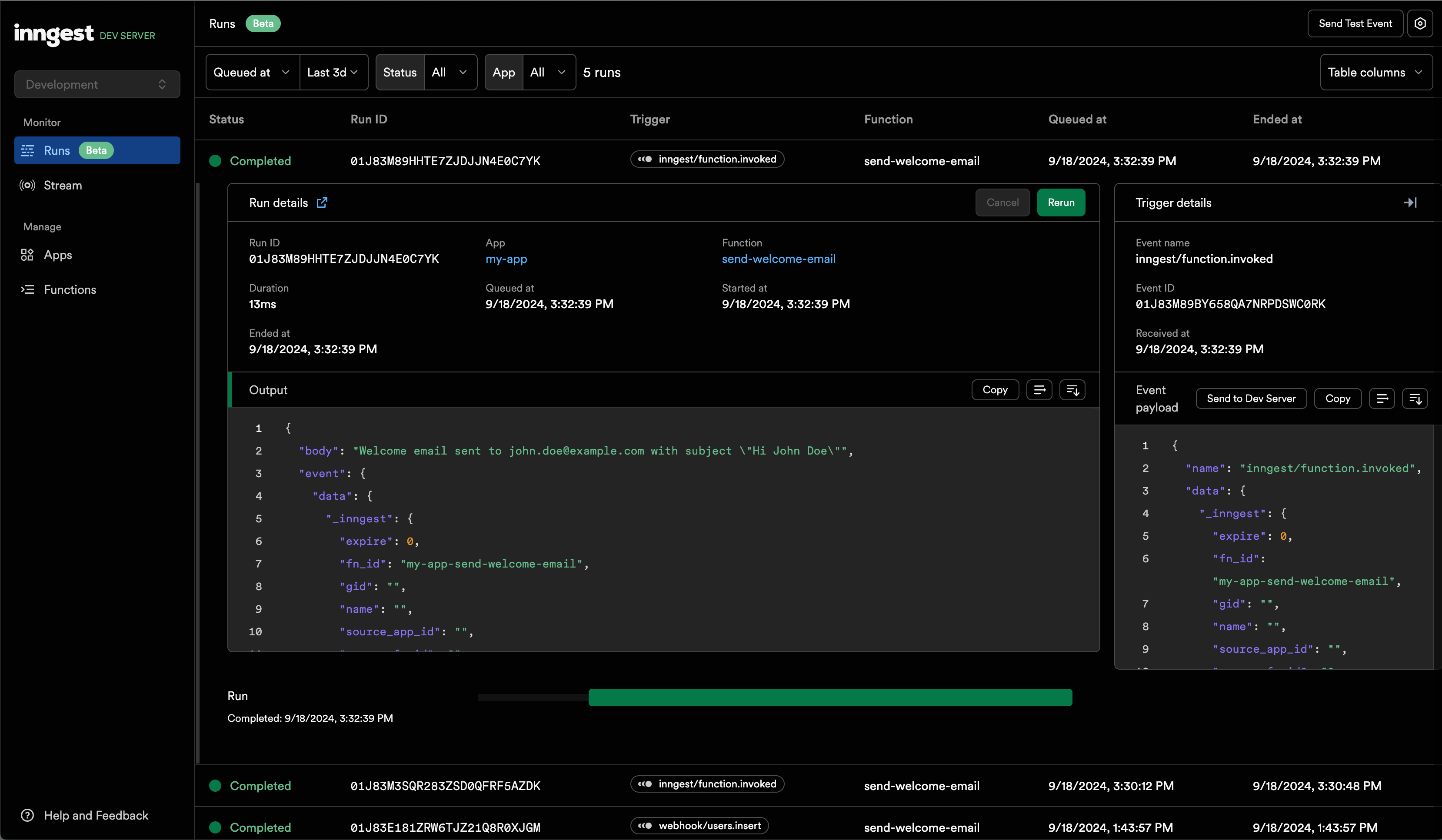
4. Click the "Invoke Function" button and then navigate to the "Runs" tab. You should see the run you just triggered:
In this guide, you'll learn how to use a Sequin webhook sink to trigger Inngest events from database changes.
## Prerequisites
You are about to create a local Inngest function that sends a welcome email to a user as soon as they are inserted into the database. Sequin ensures that every new user `insert` triggers an Inngest event that your function can then process (i.e. exactly once processing guarantee).
You'll need the following:
* An JavaScript/TypeScript project with [Inngest](https://www.inngest.com/) installed
If you don't have one already, follow [Inngest's Next.js quickstart guide](https://www.inngest.com/docs/getting-started/nextjs-quick-start#before-you-start-choose-a-project) to setup your project. You can return to this guide when you're ready to write your first Inngest function.
* Sequin [installed locally](/quickstart/webhooks)
* A [database](/connect-postgres) connected to Sequin
## Create an Inngest function
Start by creating a new Inngest function. The example below shows a function that sends a welcome email to a user when a `webhook/user.inserted` event is received.
In your `functions.ts` file (typically located in `src/inngest/functions.ts`), create a new function:
```ts theme={null}
import { inngest } from "./client";
export const sendWelcomeEmail = inngest.createFunction(
{ id: "send-welcome-email" },
{ event: "webhook/users.insert" },
async ({ event }) => {
const user = event.data;
//function to send welcome email
return { event, body: `Welcome email sent to ${user.email} with subject "Hi ${user.name}"` };
},
);
```
This function takes the `webhook/users.insert` event as input, extracts the user data, and sends a welcome email to the user.
The `Inngest.serve()` handler registers your function with Inngest so it can invoke the function.
In your route.ts file (typically located in `src/app/api/inngest/route.ts`) register the function you created above:
```ts theme={null}
import { serve } from "inngest/next";
import { inngest } from "../../../inngest/client";
import { sendWelcomeEmail } from "../../../inngest/functions";
export const { GET, POST, PUT } = serve({
client: inngest,
functions: [sendWelcomeEmail],
});
```
Test the `sendWelcomeEmail` function by trigger a test eveng in the Inngest development server:
1. Run your Next.js project and Start the Inngest development server:
```bash theme={null}
npm run dev
# in a new terminal, start the inngest development server
npx inngest-cli@latest dev
```
2. Open the Inngest dashboard in your browser and navigate to the ["Functions"](http://localhost:8288/functions) tab.
3. You should see the `send-welcome-email` function. Click the "Invoke" button and enter a sample event payload. For this example, use the following event payload:
```json theme={null}
{
"data": {
"name": "John Doe",
"email": "john.doe@example.com"
}
}
```
4. Click the "Invoke Function" button and then navigate to the "Runs" tab. You should see the run you just triggered:
 You've successfully created an Inngest function that sends a welcome email to a user when a `webhook/users.insert` event is received. In the next step, you'll trigger this event with Webhook.
## Create an Inngest webhook
Now, create an Inngest trigger that invokes the function you created above:
In the Inngest Cloud Dashboard, navigate to the ["Webhooks"](https://app.inngest.com/env/production/manage/webhooks) tab and click the "Create Webhook" button.
Copy the webhook URL. You'll provide this URL to Sequin when you create a consumer below.
Sequin will send a [payload](/reference/sinks/webhooks#request-format) to your webhook containing the database change:
```json theme={null}
{
"data:" [
{
"record": {
"id": 1,
"name": "John Doe",
"email": "john.doe@example.com"
},
"changes": null,
"action": "insert",
"metadata": {
"table_schema": "public",
"table_name": "users",
"commit_timestamp": "2024-02-20T14:30:00.127470Z",
"commit_lsn": 123456789,
"commit_idx": 1,
"database_name": "myapp-prod",
"consumer": {
"id": "e2f9a3b1-7c6d-4b5a-9f8e-1d2c3b4a5e6f",
"name": "new_user_consumer",
"annotations": {}
},
"database": {
"id": "12345678-9abc-def0-1234-56789abcdef0",
"name": "myapp-prod",
"annotations": {},
"database": "myapp-prod",
"hostname": "db.example.com"
}
}
}
]
}
```
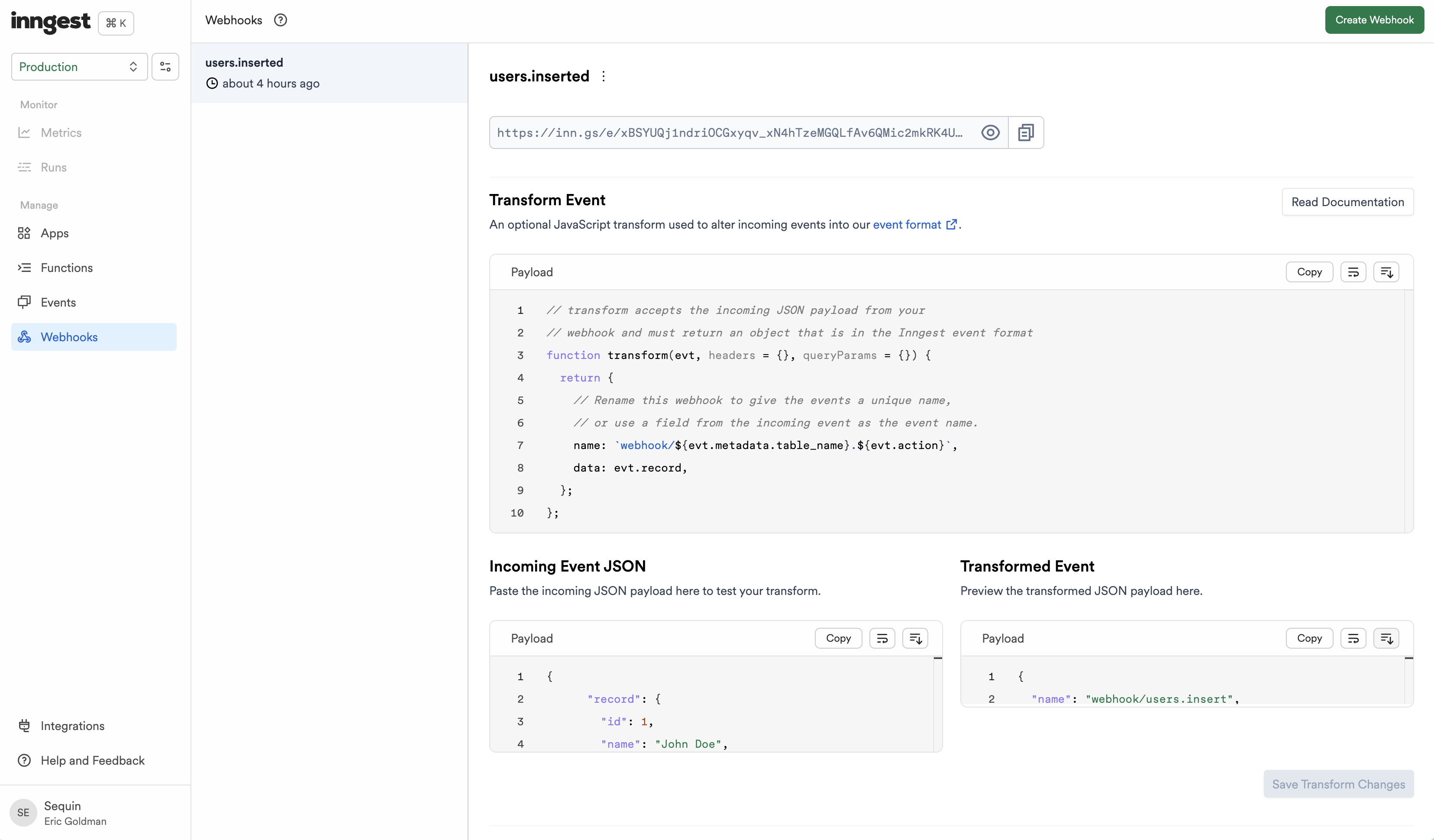
You need to transform this payload into an Inngest event that triggers your function. To do so, use a "Transform" to extract the the event name and data from the Sequin payload:
```ts theme={null}
function transform(evt, headers = {}, queryParams = {}) {
return {
// Rename this webhook to give the events a unique name,
// or use a field from the incoming event as the event name.
name: `webhook/${evt.metadata.table_name}.${evt.data[0].action}`,
data: evt.data[0].record,
};
};
```
This will create an Inngest event with the name of the table and the action (i.e. `webhook/users.insert`) and the data from the `record` field in the payload:
You've successfully created an Inngest function that sends a welcome email to a user when a `webhook/users.insert` event is received. In the next step, you'll trigger this event with Webhook.
## Create an Inngest webhook
Now, create an Inngest trigger that invokes the function you created above:
In the Inngest Cloud Dashboard, navigate to the ["Webhooks"](https://app.inngest.com/env/production/manage/webhooks) tab and click the "Create Webhook" button.
Copy the webhook URL. You'll provide this URL to Sequin when you create a consumer below.
Sequin will send a [payload](/reference/sinks/webhooks#request-format) to your webhook containing the database change:
```json theme={null}
{
"data:" [
{
"record": {
"id": 1,
"name": "John Doe",
"email": "john.doe@example.com"
},
"changes": null,
"action": "insert",
"metadata": {
"table_schema": "public",
"table_name": "users",
"commit_timestamp": "2024-02-20T14:30:00.127470Z",
"commit_lsn": 123456789,
"commit_idx": 1,
"database_name": "myapp-prod",
"consumer": {
"id": "e2f9a3b1-7c6d-4b5a-9f8e-1d2c3b4a5e6f",
"name": "new_user_consumer",
"annotations": {}
},
"database": {
"id": "12345678-9abc-def0-1234-56789abcdef0",
"name": "myapp-prod",
"annotations": {},
"database": "myapp-prod",
"hostname": "db.example.com"
}
}
}
]
}
```
You need to transform this payload into an Inngest event that triggers your function. To do so, use a "Transform" to extract the the event name and data from the Sequin payload:
```ts theme={null}
function transform(evt, headers = {}, queryParams = {}) {
return {
// Rename this webhook to give the events a unique name,
// or use a field from the incoming event as the event name.
name: `webhook/${evt.metadata.table_name}.${evt.data[0].action}`,
data: evt.data[0].record,
};
};
```
This will create an Inngest event with the name of the table and the action (i.e. `webhook/users.insert`) and the data from the `record` field in the payload:
 You've successfully created a webhook endpoint that transforms Sequin payloads into Inngest events. In the next steps, you'll configure a webhook sink to send events to your webhook.
## Create a webhook sink
Create a webhook sink that captures changes to your database and sends a HTTP POST request to the Inngest webhook URL:
Navigate to the "Sinks" tab, click the "Create Sink" button, and select "Webhook Sink".
Select the schemas and tables you want to capture changes from (i.e `public.users` or `public`).
Add [filters](/reference/filters) to the sink to control which database changes are sent to your webhook endpoint.
You can optionally indicate if you want your webhook endpoint to receive a [backfill](reference/backfills) of all or a portion of the table's existing data. For now, leave "Backfill" toggled off.
Under "Message grouping", leave the default option selected to ensure events for the same row are sent to your webhook endpoint in order.
Under "Webhook Sink configuration" leave the defaults:
* Leave the default value of `30000 ms` for "Request timeout" as this is more than enough time for Inngest to process the request
* Leave the default value of `1` for "Batch size" so each change is processed individually.
Under "HTTP Endpoint", enter the webhook URL you created in Inngest as the base URL. No additional headers are needed.
Give your sink a name (i.e. `new_user_webhook_sink`) and click "Create Webhook Sink".
Your webhook sink is now created and ready to send events to Inngest.
## Test end-to-end
Insert a new row into your database. For example, a new user:
```sql theme={null}
insert into users (name, email) values ('John Doe', 'john.doe@example.com');
```
In the Sequin web console, navigate to the "messages" tab for your webhook sinks and confirm that Sequin delivered the event to Inngest.
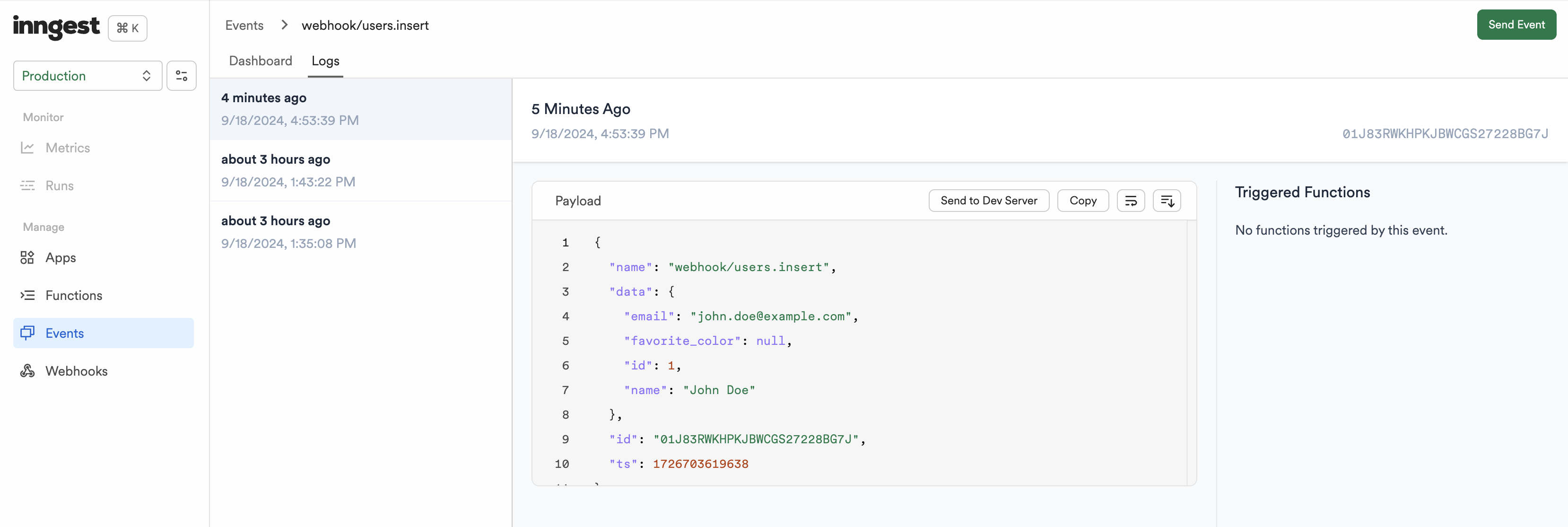
In the Inngest Cloud dashboard, navigate to the ["Events"](https://app.inngest.com/env/production/events) tab, select your event (i.e., `webhook/users.insert`), and open the "Logs" tab. You should see the event you just created:
You've successfully created a webhook endpoint that transforms Sequin payloads into Inngest events. In the next steps, you'll configure a webhook sink to send events to your webhook.
## Create a webhook sink
Create a webhook sink that captures changes to your database and sends a HTTP POST request to the Inngest webhook URL:
Navigate to the "Sinks" tab, click the "Create Sink" button, and select "Webhook Sink".
Select the schemas and tables you want to capture changes from (i.e `public.users` or `public`).
Add [filters](/reference/filters) to the sink to control which database changes are sent to your webhook endpoint.
You can optionally indicate if you want your webhook endpoint to receive a [backfill](reference/backfills) of all or a portion of the table's existing data. For now, leave "Backfill" toggled off.
Under "Message grouping", leave the default option selected to ensure events for the same row are sent to your webhook endpoint in order.
Under "Webhook Sink configuration" leave the defaults:
* Leave the default value of `30000 ms` for "Request timeout" as this is more than enough time for Inngest to process the request
* Leave the default value of `1` for "Batch size" so each change is processed individually.
Under "HTTP Endpoint", enter the webhook URL you created in Inngest as the base URL. No additional headers are needed.
Give your sink a name (i.e. `new_user_webhook_sink`) and click "Create Webhook Sink".
Your webhook sink is now created and ready to send events to Inngest.
## Test end-to-end
Insert a new row into your database. For example, a new user:
```sql theme={null}
insert into users (name, email) values ('John Doe', 'john.doe@example.com');
```
In the Sequin web console, navigate to the "messages" tab for your webhook sinks and confirm that Sequin delivered the event to Inngest.
In the Inngest Cloud dashboard, navigate to the ["Events"](https://app.inngest.com/env/production/events) tab, select your event (i.e., `webhook/users.insert`), and open the "Logs" tab. You should see the event you just created:
 Now, click the "Send to Dev Server" button to forward the event to your local Inngest development server.
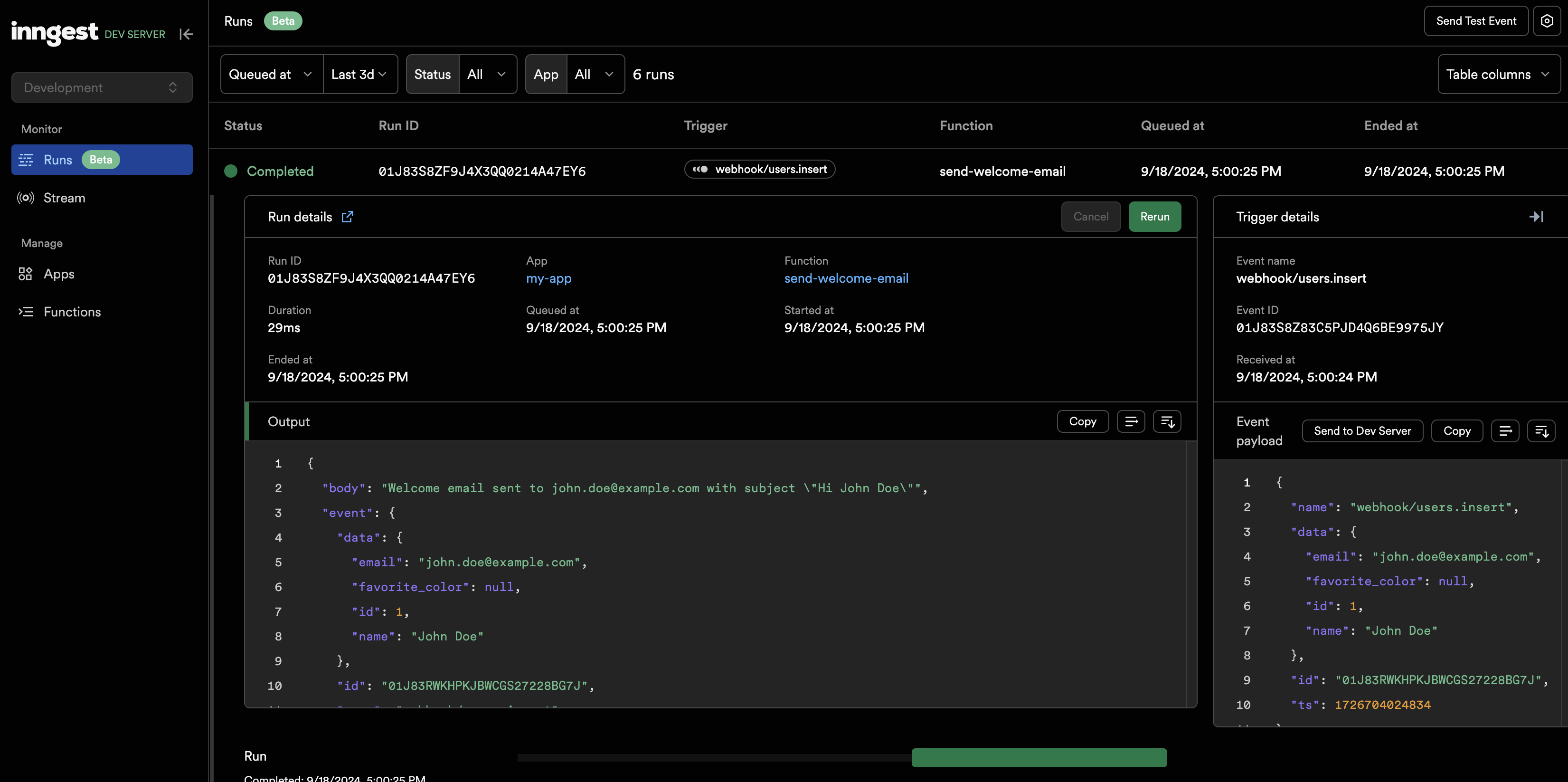
Finally, in your local Inngest development server, navigate to the "Runs" tab and confirm that the event was received and your function was invoked:
Now, click the "Send to Dev Server" button to forward the event to your local Inngest development server.
Finally, in your local Inngest development server, navigate to the "Runs" tab and confirm that the event was received and your function was invoked:
 You've successfully created a complete workflow that captures changes from your database, triggers an Inngest event, and invokes your function.
## Next steps
From here you can tailor your Sequin webhook sink and Inngest functions to cover more use cases. Then deploy your Inngest functions to production. Here are some resources to help:
* Tailor your [Sequin webhook sink](/reference/sinks/webhooks) to your use case.
* [Deploy](https://www.inngest.com/docs/platform/deployment) your Inngest functions to production.
* Make your Inngest functions more [robust](https://www.inngest.com/docs/guides/error-handling) with retries, timeouts, and other features.
You've successfully created a complete workflow that captures changes from your database, triggers an Inngest event, and invokes your function.
## Next steps
From here you can tailor your Sequin webhook sink and Inngest functions to cover more use cases. Then deploy your Inngest functions to production. Here are some resources to help:
* Tailor your [Sequin webhook sink](/reference/sinks/webhooks) to your use case.
* [Deploy](https://www.inngest.com/docs/platform/deployment) your Inngest functions to production.
* Make your Inngest functions more [robust](https://www.inngest.com/docs/guides/error-handling) with retries, timeouts, and other features.